Using Dev Tools to Take Screenshots
A Short Tutorial for Grabbing the Perfect Snip
Categories:
Opening Developer Tools
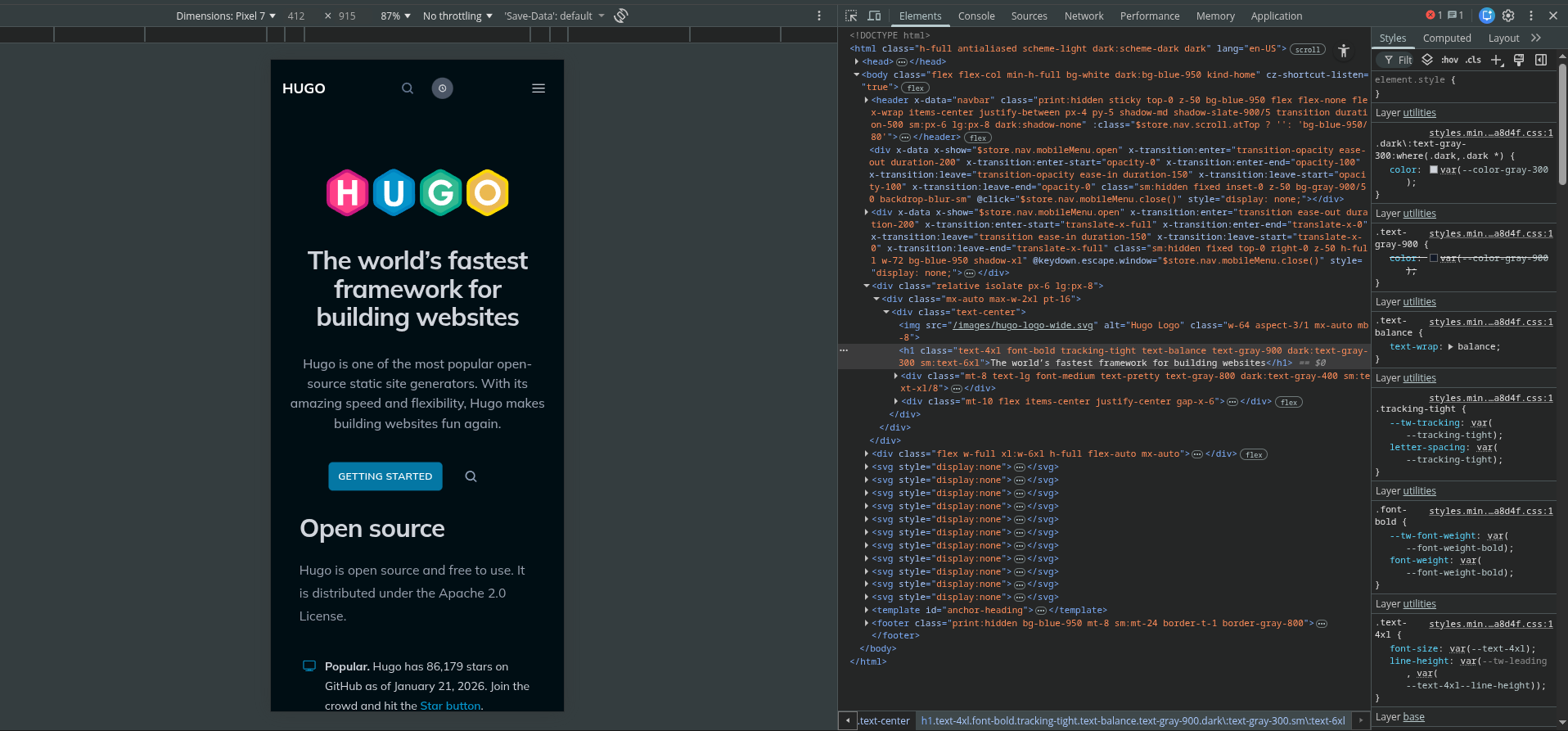
To take a screen shot in Google Chrome, you need to Inspect the webpage with developer tools.
The easiest way to do this for most people is to simply right-click anywhere on the webpage and Select Inspect from the menu that appears.
Once developer tools are open, you need to make sure that the device toolbar is also open.
If you do not see the device toolbar, you can open it by clicking the Device Icon from Material Symbols in the top left corner of the developer tools panel.

Setting the Dimensions for a Screenshot
The next step is to prepare the dimensions of your screenshot. If want to create a custom dimension, you can leave Dimension: Responsive as the default and click and drag the handles to adjust the viewport in the webpage view.
Modeling for a Specific Device
Google Chrome has a few presets for dimensions that you can use. For example, if you were looking to emulate the screen of a Pixel 7 in your screenshot, you could select that device from the Dimensions dropdown.
Capturing a Screenshot
Now for the fun part! To capture a screenshot, all you need to do is locate the More Vert Icon from Material Symbols and click it to reveal the options for Capture screenshot and Capture full size screenshot.
Capture screenshot
This option will take a screenshot of the content you see in the viewport of the webpage view. Any content that is outside of the viewport will be cropped out of the screenshot.
Capture full size screenshot
This option will take a screenshot of the entire webpage. Content that is not currently visible in the webpage view will be included in the screenshot.
Capture node screenshot
In addition to the options mentioned above, you may also capture a screenshot of a particular node in the DOM.
This is useful for capturing screenshots of individual components of a user interface.
To capture a node screenshot, locate the node you would like the capture in the Elements tab of the developer tools view, right click it, and select Capture node screenshot from the menu that appears.
Final Adjustments
If you find yourself needing more whitespace around your screenshots, you can utilize the developer tools to adjust css styling for properties like padding on your elements.
Creating extra space around your elements will keep your screenshots from appearing too compact and help to give them a more accurate representation of how they appear in the context of the webpage.